
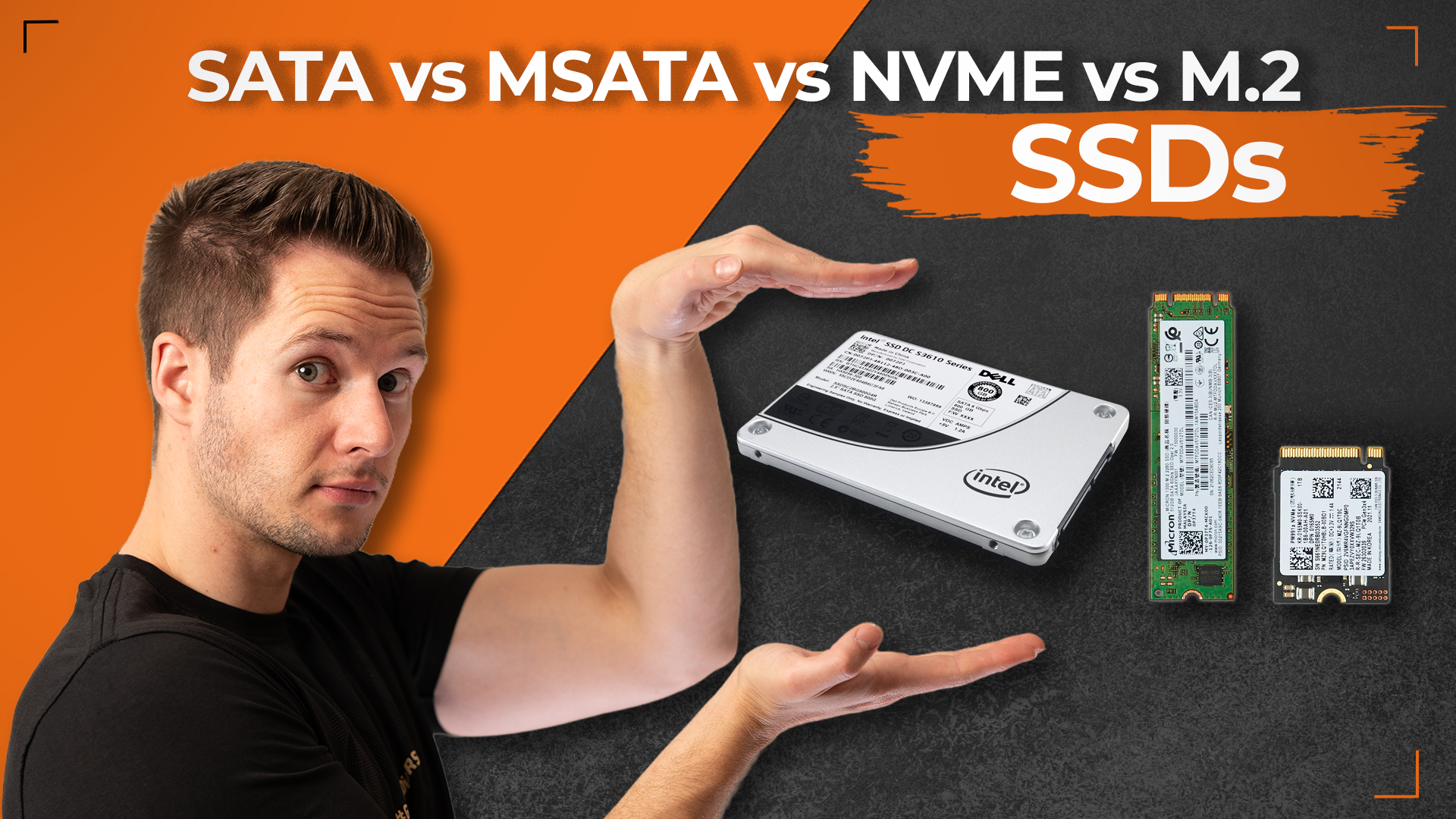

SATA vs M.2 vs NVMe: The SSD Guide That Actually Makes Sense
By Stefan @ WeDoTech
Why Shopping for an SSD Feels Like Decoding a Secret Language
You need a new SSD. You open a browser, head to your preferred retailer, and immediately face a wall of product listings filled with terms like SATA, M.2, NVMe, PCIe Gen 4, and a collection of numbers that mean absolutely nothing without context. You read three product descriptions and somehow feel less informed than when you started.
This happens to almost everyone buying storage for the first time, and it happens because the naming conventions in this category describe different things. Form factor, interface, and protocol all have separate labels, and any combination of them can appear in a single product name without explanation. Once you understand what each term actually refers to, the confusion dissolves quickly.
Here is the version that actually makes sense.
SATA: The Old-School Foundation
SATA, which stands for Serial ATA, is the oldest of the three terms you will encounter when shopping for an SSD. It was designed in the early 2000s as a way to connect storage drives to a motherboard, originally for spinning hard drives, and later adapted for solid-state drives as that technology matured.
The defining characteristic of SATA is its speed ceiling. SATA maxes out at roughly 600 MB/s of theoretical bandwidth, and even the best SATA SSDs can only push around 550 MB/s in sequential reads. The interface itself is the ceiling, not the flash memory inside.
For context, that is genuinely fast compared to a traditional spinning hard drive, which typically manages 100 to 150 MB/s. For a system previously running on a mechanical hard drive, upgrading to a SATA SSD feels transformative. But compared to what NVMe delivers, 550 MB/s is the slow lane.
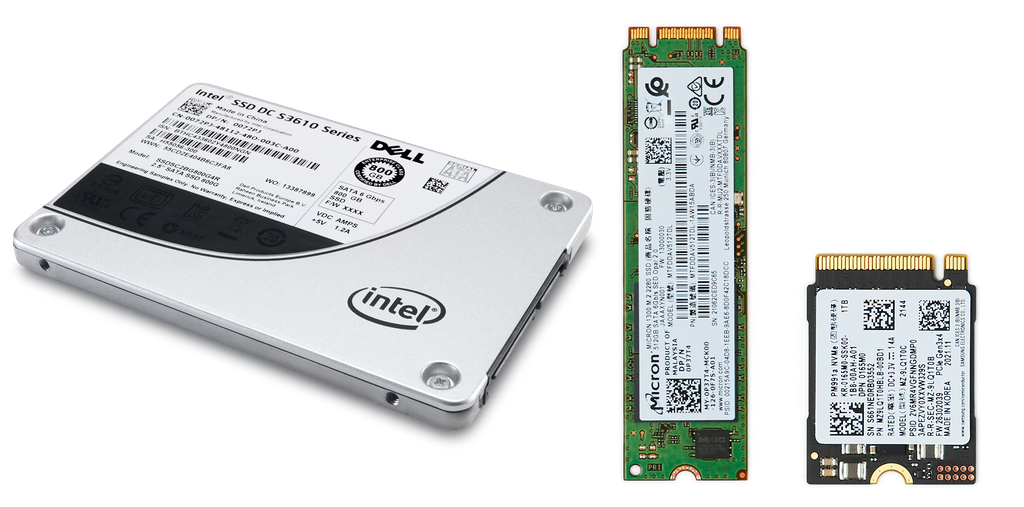
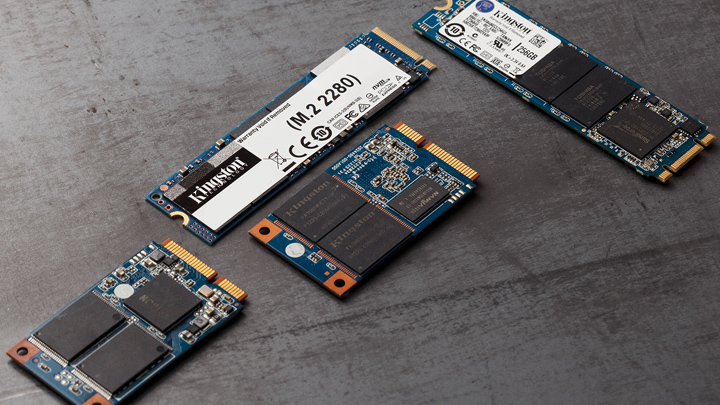
SATA SSDs come in two physical forms. The 2.5-inch version looks like a small rectangular box with two cable connections, one for power and one for data. These are the drives that replaced laptop hard drives for years and still work perfectly in older desktops with a spare drive bay. The mSATA form factor is a smaller version of the same concept, used in older compact laptops and tablets.
Who should still buy a SATA SSD in 2026: anyone upgrading an older system that does not have an M.2 slot, anyone who needs cheap secondary storage where maximum speed is irrelevant, or anyone expanding a NAS or server where SATA compatibility is a requirement. For a new build or a modern laptop upgrade, SATA is generally no longer the right starting point.
M.2: The Shape, Not the Speed
This is the term that causes the most confusion, and the confusion is understandable because M.2 tells you almost nothing about how fast a drive is.
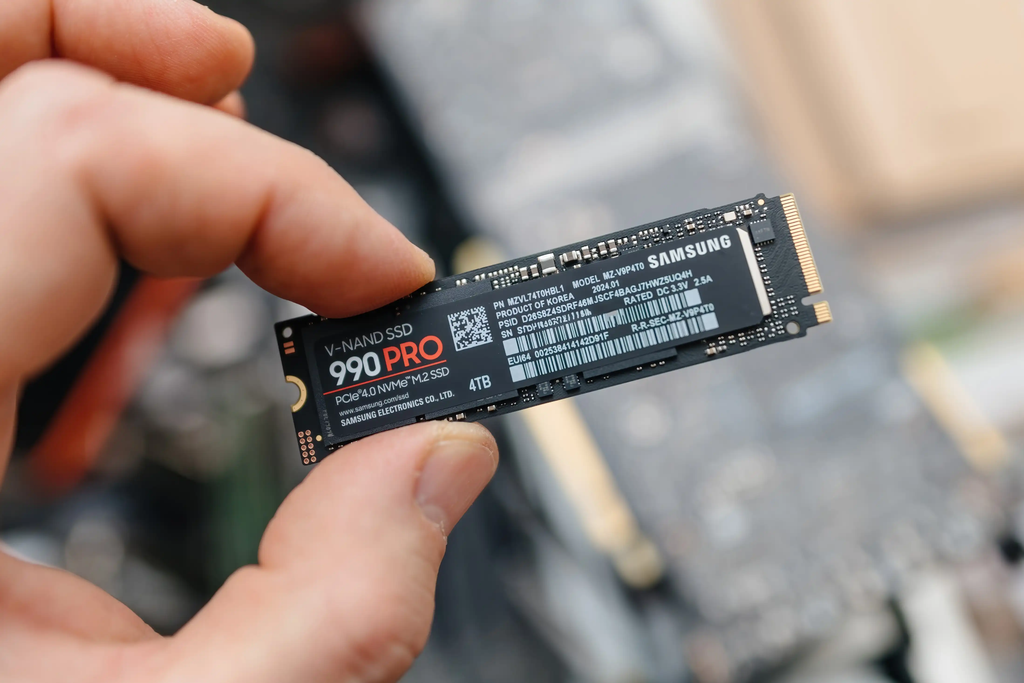
M.2 is a form factor specification. It describes the physical shape and size of the drive and how it connects to the motherboard. M.2 SSDs are small stick-shaped drives that slot directly into a dedicated connector on the motherboard, with no separate cables required. They come in standardized sizes, with the most common being M.2 2280, meaning 22mm wide and 80mm long.
SATA and NVMe aren't just different connectors. They use entirely different communication protocols to talk to your CPU and memory. An M.2 slot can physically accept both types depending on how it is keyed, meaning you can buy a slow M.2 SATA drive or an extremely fast M.2 NVMe drive, and both will fit into the same slot on some motherboards. The M.2 label on the packaging is not telling you which one you are getting.
This is why reading the full specification matters. An M.2 SSD listed without the word NVMe anywhere in the description is almost certainly a SATA drive in an M.2 form factor. It will be significantly cheaper and significantly slower than its NVMe counterpart. Both will physically fit in the same slot, but the performance difference is enormous.
Before buying any M.2 drive, check your motherboard's manual to confirm which M.2 slots support SATA, NVMe, or both. Some slots only accept one type. Installing a SATA M.2 drive into an NVMe-only slot, or vice versa, will result in the drive not being recognized.
NVMe: The Part That Actually Determines Speed
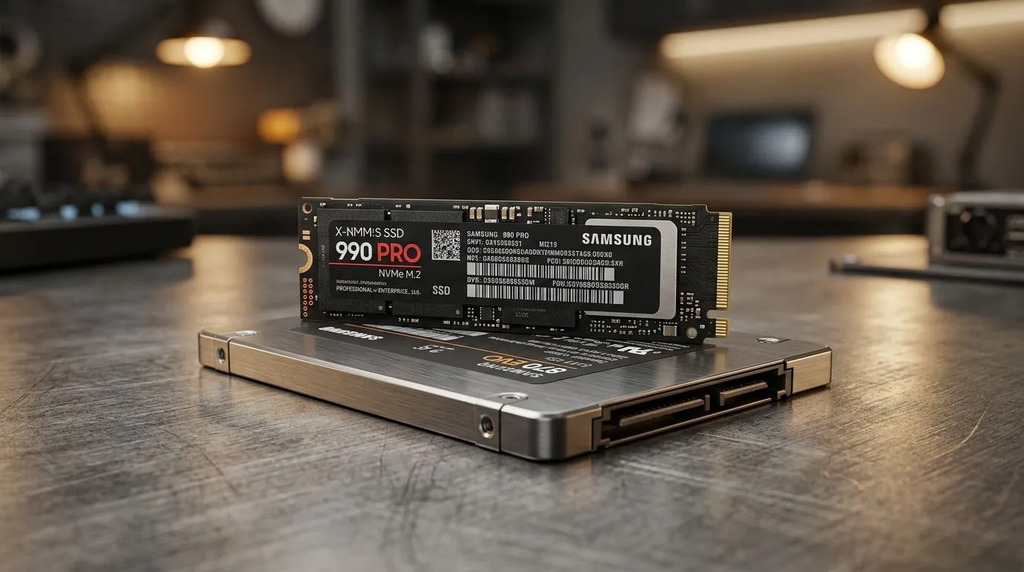
NVMe, which stands for Non-Volatile Memory Express, is the communication protocol that makes fast SSDs fast. Where SATA was designed for spinning hard drives and adapted for SSDs, NVMe was built from the ground up specifically for flash storage. It communicates directly through the PCIe lanes on your motherboard rather than through the older SATA controller, which removes a significant bottleneck.
The speed difference between SATA and NVMe is not marginal. Gen 3 NVMe runs up to 3,500 MB/s sequential read, Gen 4 up to 7,000 MB/s, and Gen 5 up to 14,000 MB/s. A SATA SSD peaks at around 550 MB/s. The gap between SATA and a mid-range NVMe drive is roughly six times the read speed. The gap between SATA and a Gen 5 NVMe drive is around 25 times.
The generation number after NVMe or PCIe tells you which version of the PCIe interface the drive uses. Each generation roughly doubles the available bandwidth compared to the previous one. Gen 3 is the older standard still found in budget drives and older systems. Gen 4 is the current mainstream sweet spot. Gen 5 is the current performance ceiling.
Which Generation Do You Actually Need
The honest answer for most people is Gen 4, and here is why.
For gaming, booting, and everyday use, Gen 4 NVMe drives deliver nearly identical real-world performance at significantly lower cost and heat output. The speed difference between Gen 4 and Gen 5 is significant in sequential benchmarks, which measure how fast large files transfer continuously. In the workloads most people actually run, including loading games, opening applications, booting Windows, and browsing files, the difference is much smaller than the spec sheet suggests.
For copying 100GB of data, Gen 4 takes approximately 16 seconds and Gen 5 takes approximately 8 seconds. The 8-second difference rarely justifies the cost premium for average users. Gen 5 drives also run hotter than Gen 4, often requiring a heatsink to avoid thermal throttling under sustained load. In a compact build or a laptop, the thermal output becomes a real design consideration.
PCIe Gen 5 drives push speeds beyond 10,000 MB/s, roughly double Gen 4 performance. The catch is that real-world applications don't fully exploit these speeds yet. Gaming performance between Gen 4 and Gen 5 is virtually identical.
Where Gen 5 earns its price: content creators moving large uncompressed video files, data scientists working with massive datasets, and professional workflows where sequential transfer speed directly impacts turnaround time. For gaming, office work, and general use, Gen 4 is the correct answer in 2026.
The Quick Reference
To make this as simple as possible:
SATA means old-school connector, maximum around 550 MB/s, separate cables or M.2 form factor, good for secondary storage or older systems that cannot accommodate NVMe. M.2 means the physical shape of the drive. It tells you nothing about speed on its own. Check whether the drive is SATA or NVMe before buying. NVMe means fast. It communicates through PCIe rather than the SATA controller. The generation number tells you how fast. Gen 3 is budget, Gen 4 is the 2026 sweet spot, Gen 5 is for specific professional use cases.
For a new PC build or a modern laptop upgrade in 2026, a Gen 4 NVMe M.2 drive is the answer for the vast majority of use cases. Look for confirmed Gen 4 in the specifications rather than just M.2 or NVMe alone, since budget drives will use Gen 3 without making it obvious.
The Things the Script Knows It Left Out
A few details worth noting for anyone who wants to go deeper once the basics are clear.
DRAM cache affects real-world performance in ways that the generation number does not capture. Drives with a dedicated DRAM cache handle random read and write operations significantly better than DRAM-less alternatives. The Samsung 990 Pro and WD Black SN850X are the reference Gen 4 drives partly because of their cache implementations, not just their raw bandwidth.
M.2 drives come in different lengths. The 2280 size is the standard for desktop motherboards. Laptops sometimes use shorter 2242 or 2260 drives. Check your device's specifications before buying.
NVMe drives are backward compatible. An NVMe drive will downclock gracefully on older PCIe slots, so a Gen 5 stick will run at Gen 4 or Gen 3 speeds in older boards rather than refusing to boot. You will not get full performance, but the drive will work.
Final Thoughts
SATA, M.2, and NVMe are not three competing technologies in the way that the product listings make them appear. They describe three different things: an interface standard, a physical form factor, and a communication protocol. Once you know which category each term belongs to, reading an SSD spec sheet stops being a guessing game.
For most people building or upgrading a system in 2026, the answer is a Gen 4 NVMe M.2 drive from a reputable manufacturer with a DRAM cache. Everything beyond that is a conversation about specific workloads and whether the performance ceiling of the previous tier is actually holding you back.
If you found this interesting, take a look at HDMI vs DisplayPorts, where we take a deep dive into why most hardware not only uses HDMI, but also what the pros and cons of each are.